

皆の者、ご機嫌麗しゅう!我は、生成AI猫 エルシーじゃ😊
マイペースだとよく言われるのじゃ!
出身地:Adobe Firefly(画像生成AI)
Hello everyone! I am Elsy, the AI-generated cat 😊
People often say I do things at my own pace!
Place of origin: Adobe Firefly (AI image generator)

皆さん、初めまして!私は、オリバーです。
エルシーさんの助手猫です。
エルシーさんがよく暴走するので、暴走を止める役割をしています。
出身地:Adobe Firefly(画像生成AI)
Hello everyone! My name is Oliver.
I am Elsy’s helper cat.
Elsy sometimes gets out of control, so my job is to stop her.
Place of origin: Adobe Firefly (AI image generator)
新しいPCを購入したら、まず整えておきたいのが開発環境のセットアップです。本記事では、Python初心者でも迷わず進められるように、Jupyter Notebookを新しいPCで使えるようにする手順をわかりやすく解説します。Visual Studio Codeの準備からインストール確認まで、必要なポイントを丁寧にまとめました。
When you buy a new PC, one of the first things to do is set up your development environment.
In this article, I explain how to set up Jupyter Notebook on a new PC in a clear, step-by-step way, even if you are new to Python.
From preparing Visual Studio Code to checking the installation, I cover the key points carefully.
Jupyter Notebookの設定 | Jupyter Notebook Setup
古いPCが限界だったから、新しいPCを買ったのじゃ!
My old PC had reached its limit, so I bought a new PC.
そうなんですね!
それでは、新しいPCでJupyter Notebookを使えるように設定が必要ですね!
I see!
Then, you need to set up your new PC so you can use Jupyter Notebook.
そうだったのじゃ!
一緒にやるのじゃ!
That’s right!
Let’s do it together!
Jupyter Notebookをインストールする前に必要なこと | What You Need Before Installing Jupyter Notebook
まず最初に下記の準備が必要です。
First, you need to prepare the following.
- PCのセットアップ
- Visual Studio Codeのインストール
- Pythonのインストール
- 仮想環境の作成と設定(必要な場合)
- Computer setup
- Install Visual Studio Code
- Create and set up a virtual environment (if needed)
Jupyter Notebookのインストール | Install Jupyter Notebook
Visual Studio Codeを起動します。
Open Visual Studio Code.

Ctrl+Shift+Pを同時に押して、Pythonの環境を設定するのじゃ!
仮想環境を使っている人は、使いたい仮想環境の設定になっていることを確認するのじゃ!
Press Ctrl + Shift + P to set the Python environment!
If you are using a virtual environment, make sure the one you want to use is selected.

Ctrl+Shift+@を同時に押して、ターミナルを表示します。
Press Ctrl + Shift + @ to open the terminal.
仮想環境を使う場合は、ターミナルで仮想環境のパスを入力して、仮想環境を有効化させる必要があるのじゃ!
If you use a virtual environment, you need to enter the virtual environment path in the terminal and activate it.
【仮想環境の場所 | Virtual Environment Location】/Scripts/Activate.ps1Jupyter Notebookをインストールするのじゃ!
ターミナルに下記のコマンドをコピペして実行するのじゃ!
Install Jupyter Notebook!
Copy and paste the command below into the terminal and run it.
pip install jupyterインストールが完了したら、きちんとインストールされているかを確認します。
インストールされているライブラリの一覧を表示するために、下記のコマンドを実行します。
After the installation is finished, check that it was installed correctly.
Run the command below to show the list of installed libraries.
pip list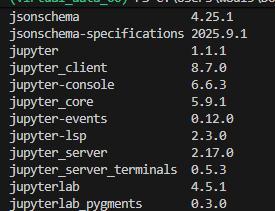
きちんとインストールされていればOKじゃ!
If it is installed correctly, everything is OK!
このブログは、運営者の趣味兼勉強用ブログです。
情報が間違っている可能性があるため、ご注意ください。
下記のブログと同じ運営者のため、同じ生成AI猫のキャラクターが登場します。
This blog is a hobby and study blog run by the owner. Please note that some information may be incorrect.
The same AI cat characters appear here because this blog is run by the same owner as the blog below.
https://generative-ai-beginner-navi.com/

コメント