

皆の者、ご機嫌麗しゅう!我は、生成AI猫 エルシーじゃ😊
マイペースだとよく言われるのじゃ!
出身地:Adobe Firefly(画像生成AI)
Hello everyone! I am Elsy, the AI-generated cat 😊
People often say I do things at my own pace!
Place of origin: Adobe Firefly (AI image generator)

皆さん、初めまして!私は、オリバーです。
エルシーさんの助手猫です。
エルシーさんがよく暴走するので、暴走を止める役割をしています。
出身地:Adobe Firefly(画像生成AI)
Hello everyone! My name is Oliver.
I am Elsy’s helper cat.
Elsy sometimes gets out of control, so my job is to stop her.
Place of origin: Adobe Firefly (AI image generator)
Pythonで作業するたびに「仮想環境を有効化して…Jupyter Notebookを起動して…」と毎回コマンドを打つのは面倒ですよね。本記事では、バッチファイルを使って“仮想環境の有効化+Jupyter Notebookの起動”をワンクリックで自動化する方法を、初心者にも分かりやすく解説します。作業効率が大幅に向上するため、データ分析や機械学習を行う方に特におすすめです。
Every time you work with Python, typing commands like “activate the virtual environment… launch Jupyter Notebook…” can be a hassle. In this article, we explain how to automate both the activation of your virtual environment and the launch of Jupyter Notebook with a single click using a batch file. This simple workflow greatly improves efficiency, making it especially useful for those working in data analysis or machine learning.
【Python】仮想環境を有効化+Jupyter Notebookの起動を一括で行う方法 | [Python] How to Activate a Virtual Environment and Launch Jupyter Notebook All at Once
メモ帳に下記のコードをコピペするのじゃ!
ファイルの拡張子は「.bat」にして保存するのじゃ!
Copy and paste the following code into Notepad!
Save the file with the “.bat” extension!
下記については、自分の環境に合わせて修正してください
- ①【プロジェクトフォルダのパス】
- ②【仮想環境のパス】
Please modify the following according to your own environment:
- The path to your project folder
- The path to your virtual environment
@echo off
:: ① プロジェクトのフォルダに移動
cd /d 【プロジェクトフォルダのパス】

:: ② 仮想環境を有効化 (環境名が .venv の場合)
call 【仮想環境のパス】activate.bat

:: ③ Jupyter Notebookを起動
jupyter notebook

pause
@echo off
:: 1. Move to the project folder
cd /d [Path to your project folder]
:: 2. Activate the virtual environment (if the environment name is .venv)
call [Path to your virtual environment]activate.bat
:: 3. Launch Jupyter Notebook
jupyter notebook
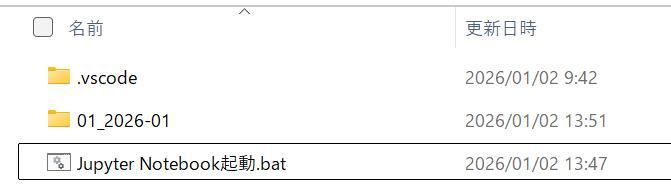
pause作成したバッチをダブルクリックすれば、自動で仮想環境の有効化とJupyter Notebookの起動ができるのじゃ!
By double-clicking the batch file you created, it will automatically activate the virtual environment and launch Jupyter Notebook!
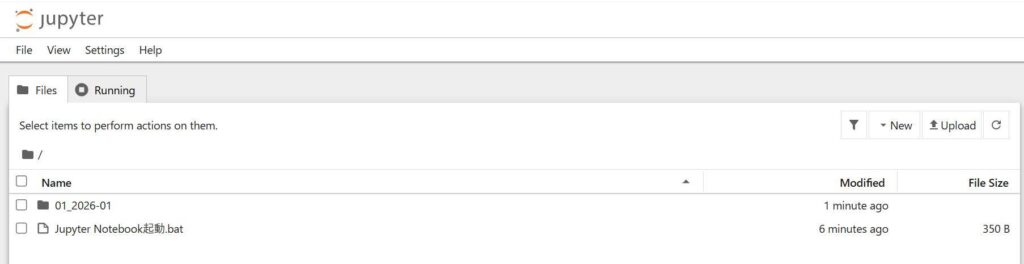
自動でJupyter Notebookが起動しました!
とても便利です!
Jupyter Notebook launched automatically!
It’s incredibly convenient!
このブログは、運営者の趣味兼勉強用ブログです。
情報が間違っている可能性があるため、ご注意ください。
下記のブログと同じ運営者のため、同じ生成AI猫のキャラクターが登場します。
This blog is a hobby and study blog run by the owner. Please note that some information may be incorrect.
The same AI cat characters appear here because this blog is run by the same owner as the blog below.
https://generative-ai-beginner-navi.com/

コメント