

皆の者、ご機嫌麗しゅう!我は、生成AI猫 エルシーじゃ😊
マイペースだとよく言われるのじゃ!
出身地:Adobe Firefly(画像生成AI)
Hello everyone! I am Elsy, the AI-generated cat 😊
People often say I do things at my own pace!
Place of origin: Adobe Firefly (AI image generator)

皆さん、初めまして!私は、オリバーです。
エルシーさんの助手猫です。
エルシーさんがよく暴走するので、暴走を止める役割をしています。
出身地:Adobe Firefly(画像生成AI)
Hello everyone! My name is Oliver.
I am Elsy’s helper cat.
Elsy sometimes gets out of control, so my job is to stop her.
Place of origin: Adobe Firefly (AI image generator)
Jupyter Notebook をインストールしようとした際に「OSError」や「Windows Long Path support」に関するエラーが表示されて困っていませんか?本記事では、Windows のパス長制限が原因で発生するインストール失敗の理由と、初心者でも確実に解決できる手順をわかりやすく解説します。Python 学習やデータ分析の準備を進めたい方は、ぜひ参考にしてください。
Are you struggling with an “OSError” or “Windows Long Path support” error when trying to install Jupyter Notebook? This article explains the cause of installation failures caused by Windows path length limitations and provides clear, beginner-friendly steps to fix the issue. If you’re preparing for Python learning or data analysis, this guide will help you get started smoothly.
Jupyter Notebookのインストールに失敗した | I failed to install Jupyter Notebook.
下記のコマンドを実行したら、エラーが発生しました。
When I ran the command below, an error occurred.
pip install jupyterどんなエラーが発生したのじゃ?
What kind of error happened?
下記のエラーが発生しました。
The following error occurred.
ERROR: Could not install packages due to an OSError: [Errno 2] No such file or directory:
【パス:Path】
HINT: This error might have occurred since this system does not have Windows Long Path support enabled. You can find information on how to enable this at https://pip.pypa.io/warnings/enable-long-pathsこれはWindows の「パス長制限(260文字)」が原因で発生したエラーなのじゃ!
Windows Long Path support が無効になっているのじゃ!
This error was caused by the Windows path length limit (260 characters)!
Windows Long Path support is disabled.
ではどうすればいいですか?
So, what should I do?
Windows のパス長制限を有効にする方法 | How to Enable the Windows Path Length Limit
Windows + Rキーを押すのじゃ!
Press the Windows key + R.
画面が表示されました。
何を入力すればいいですか?
The screen appeared.
What should I enter?
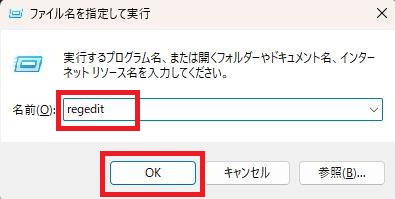
「regedit」を入力して、OKボタンを押すのじゃ!
Type “regedit” and click the OK button.
下記の順番でフォルダを開いて、LongPathsEnabledを探すのじゃ!
Open the folders in the order below and look for “LongPathsEnabled”.
HKEY_LOCAL_MACHINE
 └ SYSTEM
   └ CurrentControlSet
     └ Control
       └ FileSystem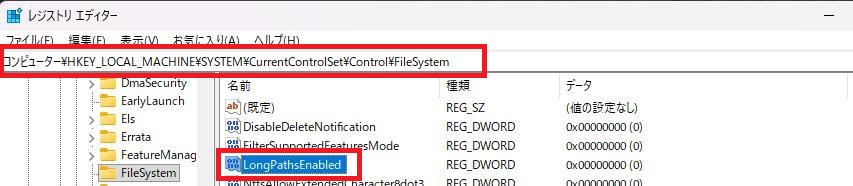
LongPathsEnabledを右クリックするのじゃ!
Right-click on “LongPathsEnabled”.
有効・無効ボタンがありません。
どうすればいいですか?
There is no enable or disable button.
What should I do?
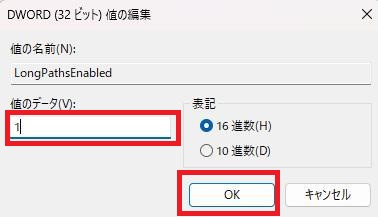
「値のデータ」を1に変更して、OKボタンを押すのじゃ!
Change the “Value data” to 1 and click the OK button.
最後に、PCを再起動すれば完了じゃ!
Finally, restart your PC to finish.
このブログは、運営者の趣味兼勉強用ブログです。
情報が間違っている可能性があるため、ご注意ください。
下記のブログと同じ運営者のため、同じ生成AI猫のキャラクターが登場します。
This blog is a hobby and study blog run by the owner. Please note that some information may be incorrect.
The same AI cat characters appear here because this blog is run by the same owner as the blog below.
https://generative-ai-beginner-navi.com/

コメント