
皆の者、ご機嫌麗しゅう!我は、生成AI猫 エルシーじゃ😊
マイペースだとよく言われるのじゃ!
出身地:Adobe Firefly(画像生成AI)
Hello everyone! I am Elsy, the AI-generated cat 😊
People often say I do things at my own pace!
Place of origin: Adobe Firefly (AI image generator)

皆さん、初めまして!私は、オリバーです。
エルシーさんの助手猫です。
エルシーさんがよく暴走するので、暴走を止める役割をしています。
出身地:Adobe Firefly(画像生成AI)
Hello everyone! My name is Oliver.
I am Elsy’s helper cat.
Elsy sometimes gets out of control, so my job is to stop her.
Place of origin: Adobe Firefly (AI image generator)
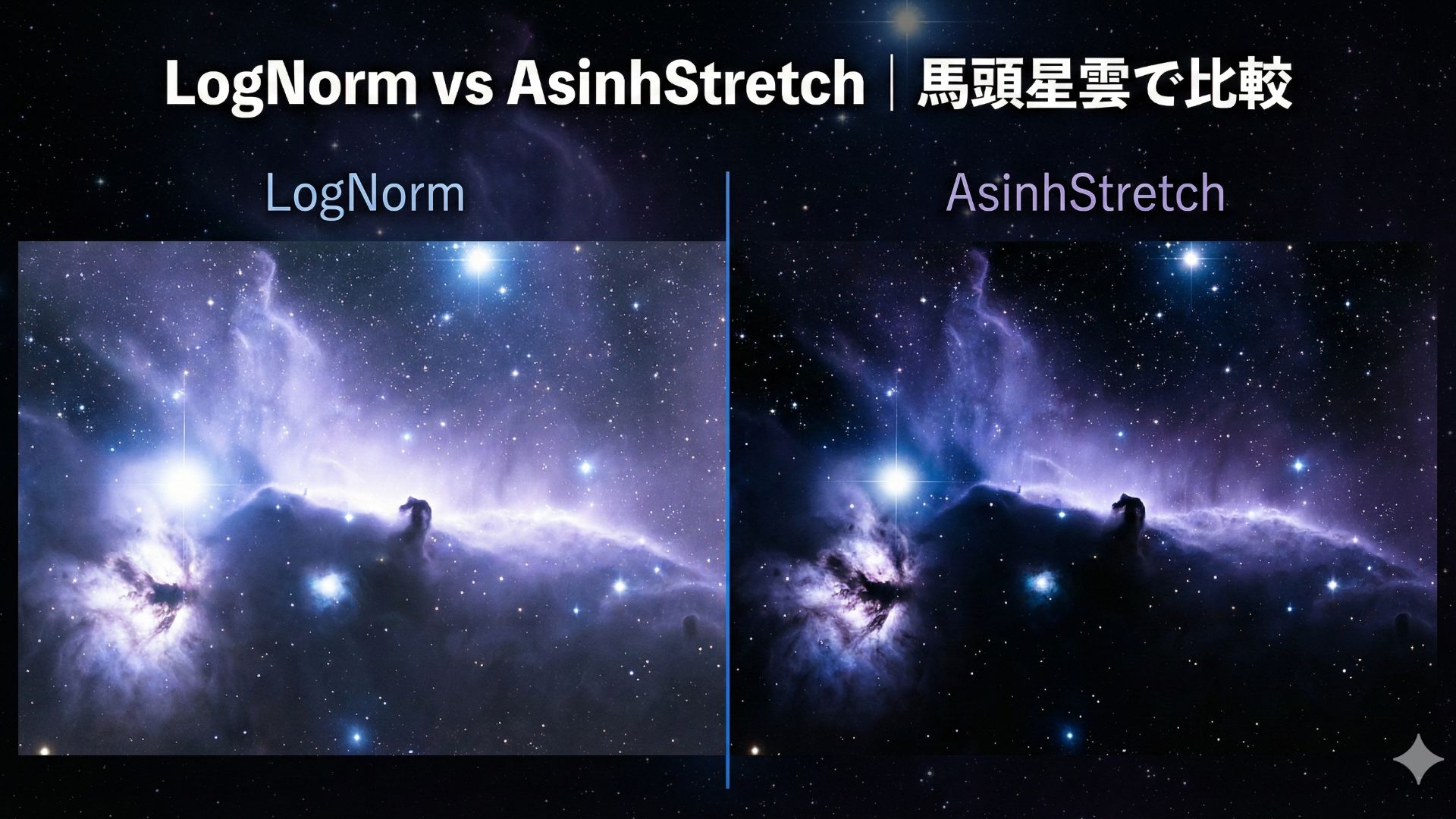
天体画像をより美しく、より正確に表現するためには「どの伸張処理を使うか」が重要です。本記事では、Astropyで利用できる LogNorm と AsinhStretch の2つの手法を使い、馬頭星雲(Horsehead Nebula)の画像を実際に比較しました。暗いガスの構造を強調したい場合や、明るい星の白飛びを抑えたい場合など、目的に応じた最適な処理方法が分かる内容になっています。初心者でも理解しやすいように、特徴・違い・実際のコード例を丁寧に解説します。
参考文献
公式サイト Astropy

LogNormとAsinhStretchの違い
この2つの手法には、下記の違いがあるそうです!
- LogNorm: 全体的に明るくなりますが、中心部の明るい星のディテールが消えやすい。
- AsinhStretch: 暗いガスを浮かび上がらせつつ、中心部の星も白飛びせずに構造が見えやすい。
暗い星雲を見つけたい場合は、LogNormを使うと良さそうなのじゃ!
明るい星雲の構造をはっきり見たい場合は、AsinhStretchを使うのがいいですね!
馬頭星雲をLogNormで表示
馬頭星雲をLogNormで表示したのがこちらです。
import numpy as np

# Set up matplotlib
import matplotlib.pyplot as plt
%matplotlib inline
from astropy.io import fits
from astropy.utils.data import download_file
from matplotlib.colors import LogNorm

image_file = download_file(
    "http://data.astropy.org/tutorials/FITS-images/HorseHead.fits", cache=True
)

hdu_list = fits.open(image_file)
image_data = hdu_list[0].data

plt.imshow(image_data, cmap="gray", norm=LogNorm())


cbar = plt.colorbar(ticks=[5.0e3, 1.0e4, 2.0e4])
cbar.ax.set_yticklabels(["5,000", "10,000", "20,000"])
plt.savefig("LogNorm.png", format="png", dpi=300, bbox_inches='tight')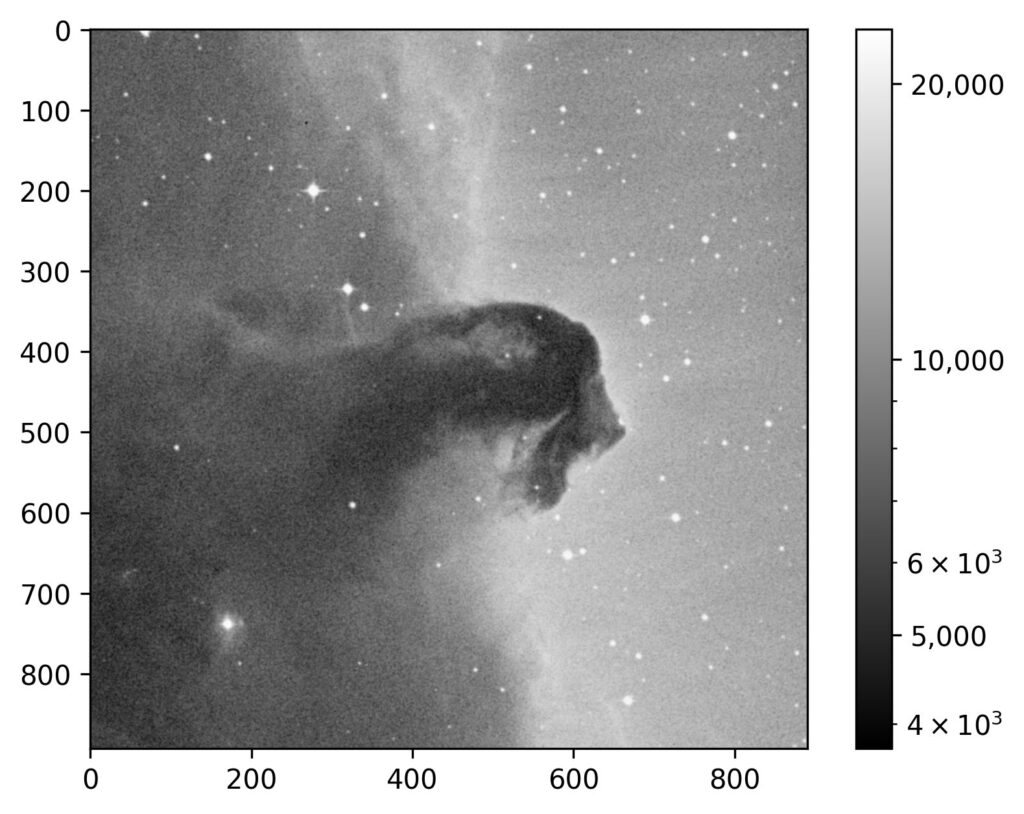
綺麗な画像じゃが、中の構造がわかりにくいのじゃ!
馬頭星雲をAsinhStretchで表示
AsinhStretchを使って作成したのがこちらです。
import numpy as np
import matplotlib.pyplot as plt
%matplotlib inline
from astropy.io import fits
from astropy.utils.data import download_file

image_file = download_file(
    "http://data.astropy.org/tutorials/FITS-images/HorseHead.fits", cache=True
)

hdu_list = fits.open(image_file)
image_data = hdu_list[0].data

import matplotlib.pyplot as plt
from astropy.visualization import (ImageNormalize, AsinhStretch,
                                   ZScaleInterval, PercentileInterval)

# 1. 正規化の設定を作成
# stretch に AsinhStretch を指定します
# interval で vmin, vmax を自動計算させると便利です(例:全体の99%をカバー)
norm = ImageNormalize(image_data,
                      interval=PercentileInterval(99),
                      stretch=AsinhStretch())

# 2. 画像の表示
plt.imshow(image_data, cmap="gray", norm=norm)
plt.colorbar(label='Intensity')
plt.savefig("AsinhStretch.png", format="png", dpi=300, bbox_inches='tight')
plt.show()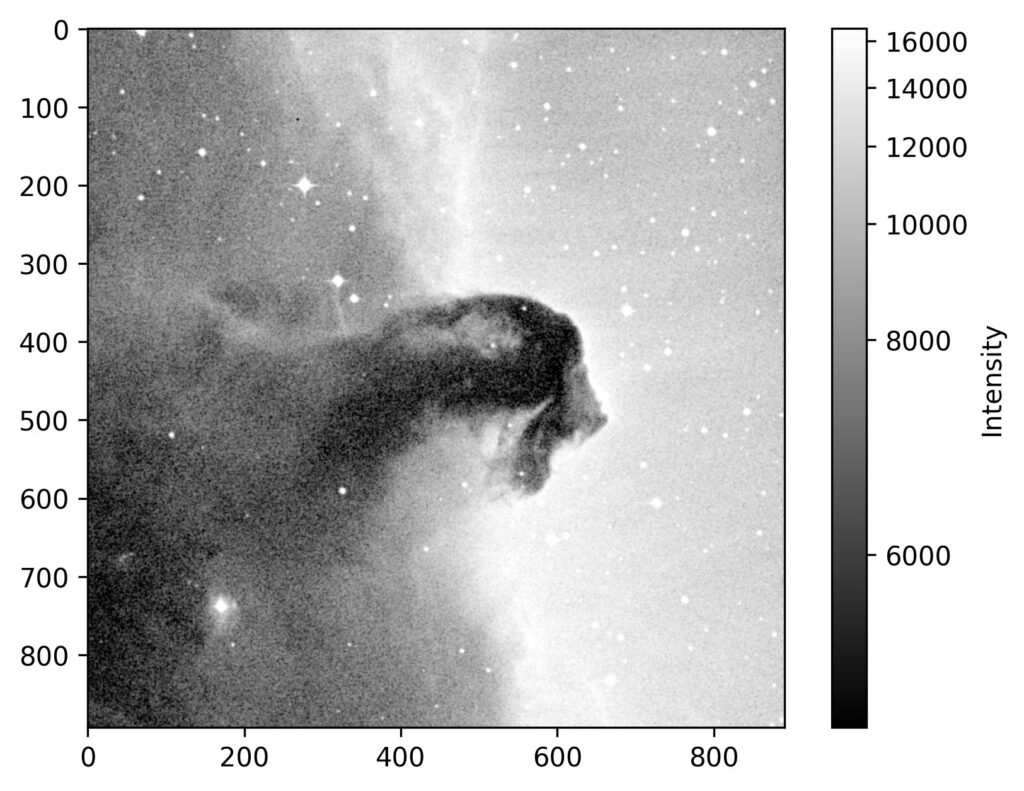
AsinhStretchの方が全体的に白く見えています。
このブログは、運営者の趣味兼勉強用ブログです。
情報が間違っている可能性があるため、ご注意ください。
下記のブログと同じ運営者のため、同じ生成AI猫のキャラクターが登場します。
This blog is a hobby and study blog run by the owner. Please note that some information may be incorrect.
The same AI cat characters appear here because this blog is run by the same owner as the blog below.
https://generative-ai-beginner-navi.com/
コメント